
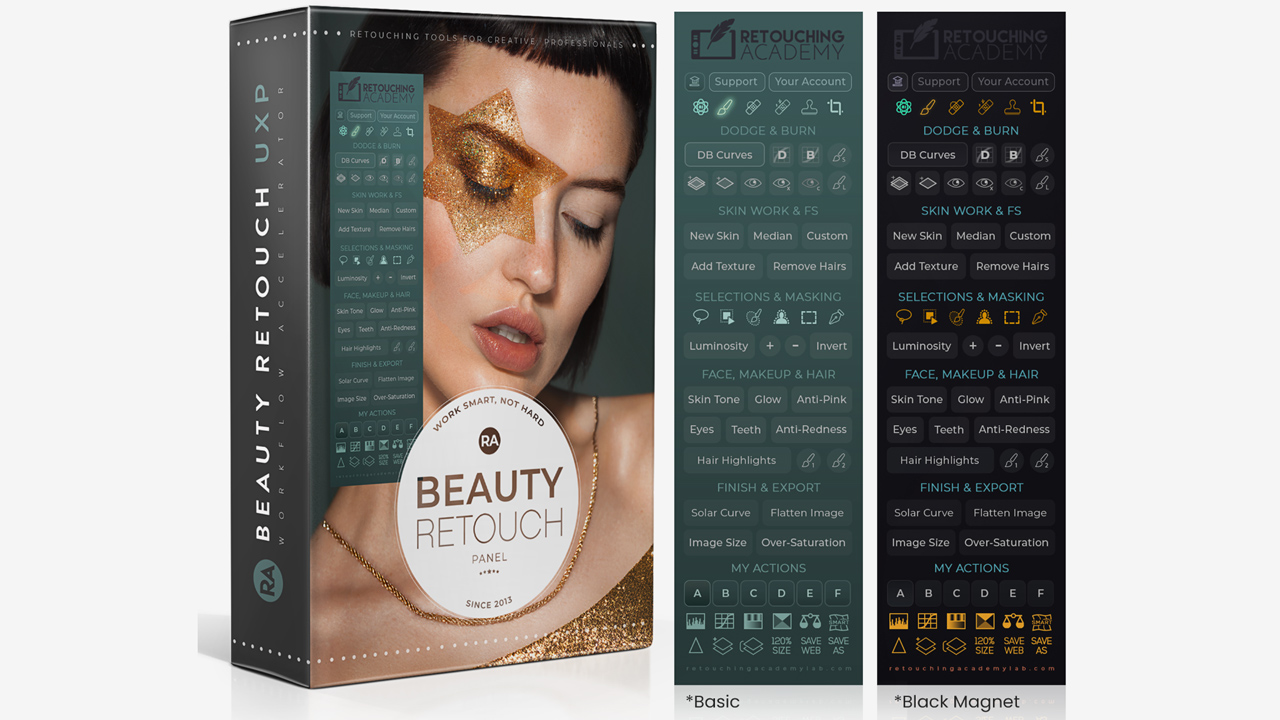
New Beauty Retouch Version 5 is Finally Here!
The new Beauty Retouch Panel v5 has finally arrived, bringing powerful AI tools to make your retouching work faster and easier. This version introduces exciting features like the New Skin script (watch video below) for quick skin retouching and the AI Tool with Generative Fill (watch video below) that allows you to quickly remove elements, such as tattoos, messy hair flyaways, or other distracting elements, and even add accessories or new clothing in your beauty and

Keyboard Shortcuts for Faster Beauty Retouching
This video lesson is an outtake from our Photoshop Essentials for Beauty Retouching course. The term Keyboard shortcuts refers to a combination of keys that allow you to easily select or adjust a tool without the need to navigate to a certain part of the screen to activate it or dig through endless Photoshop menus.

The Power of Luminosity Masking
One of the most powerful professional selection tools for retouching is Luminosity Masking, which is based on the luminosity values of an image. While in many retouching situations you may not need the advanced Luminosity Masking, it is important that you know what is possible and how to achieve those complex selections.

Professional Selections & Masking in Photoshop
One of the important things we do often in retouching is targeted color corrections. To isolate parts of an image for localized adjustment we use Photoshop selection tools and methods. There is no shortage of selection tools, and some will work quicker and better than others depending on the area you are selecting - we have listed the simple ones below.
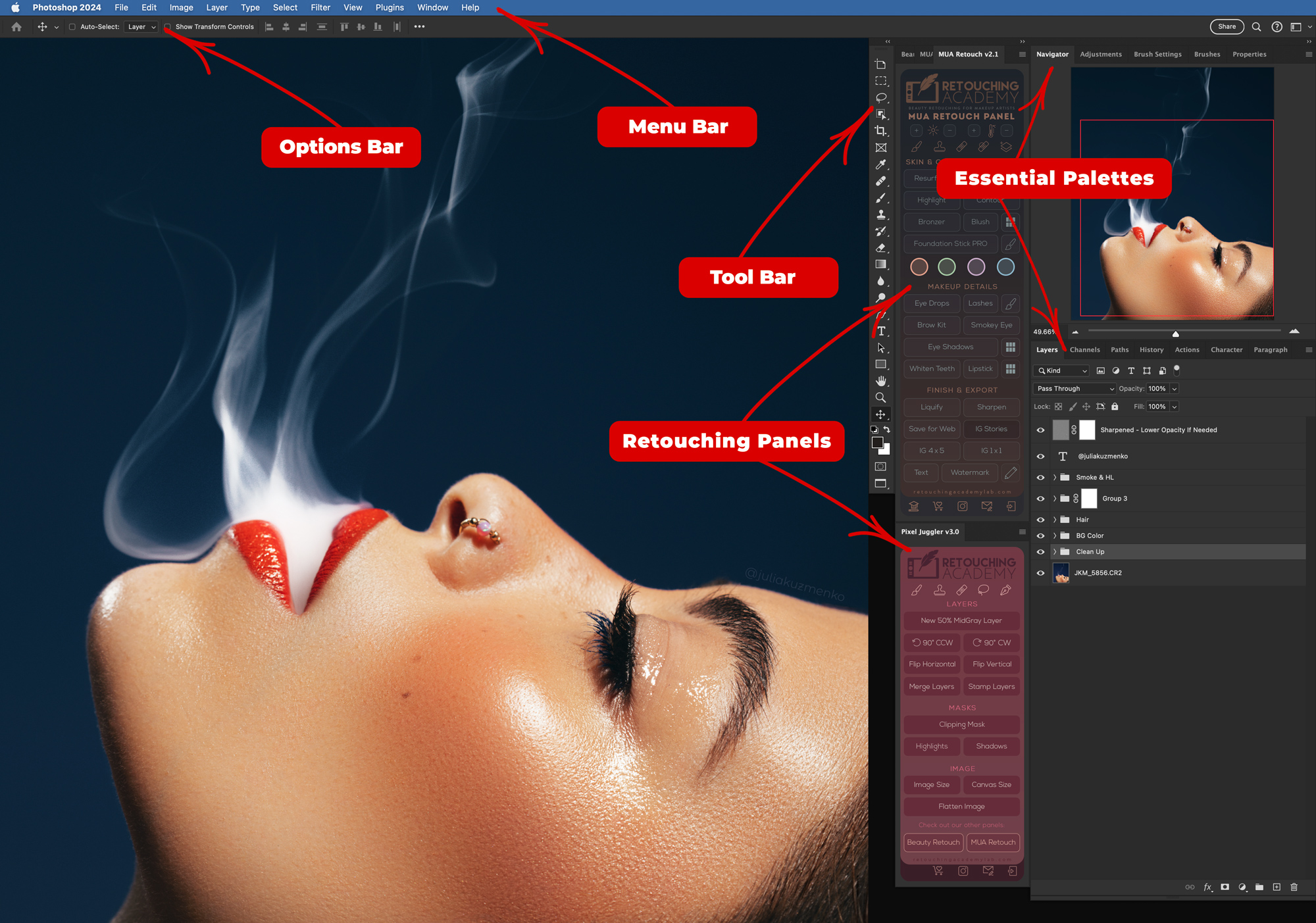
Photoshop Essential Panels for Beauty Retouching
Photoshop essential palettes are a powerful tool for content creators. They are one of the core aspects of navigating Photoshop efficiently. To customize your Photoshop workspace, select palettes via the "Window" menu in the top menu bar. Toggle different palettes like "Layers," "History," or "Channels" on or off by clicking their titles.
Safe Photoshop Updates
If you use our panels on a daily basis, we encourage you to NOT update Photoshop as soon as a new update is rolled out by Adobe. If you, however, decide that it is imperative for you to update Photoshop to a newly-released version immediately, be sure to check Import Previous Settings and Preferences and uncheck Remove Old Versions (see the screenshot below) when updating.
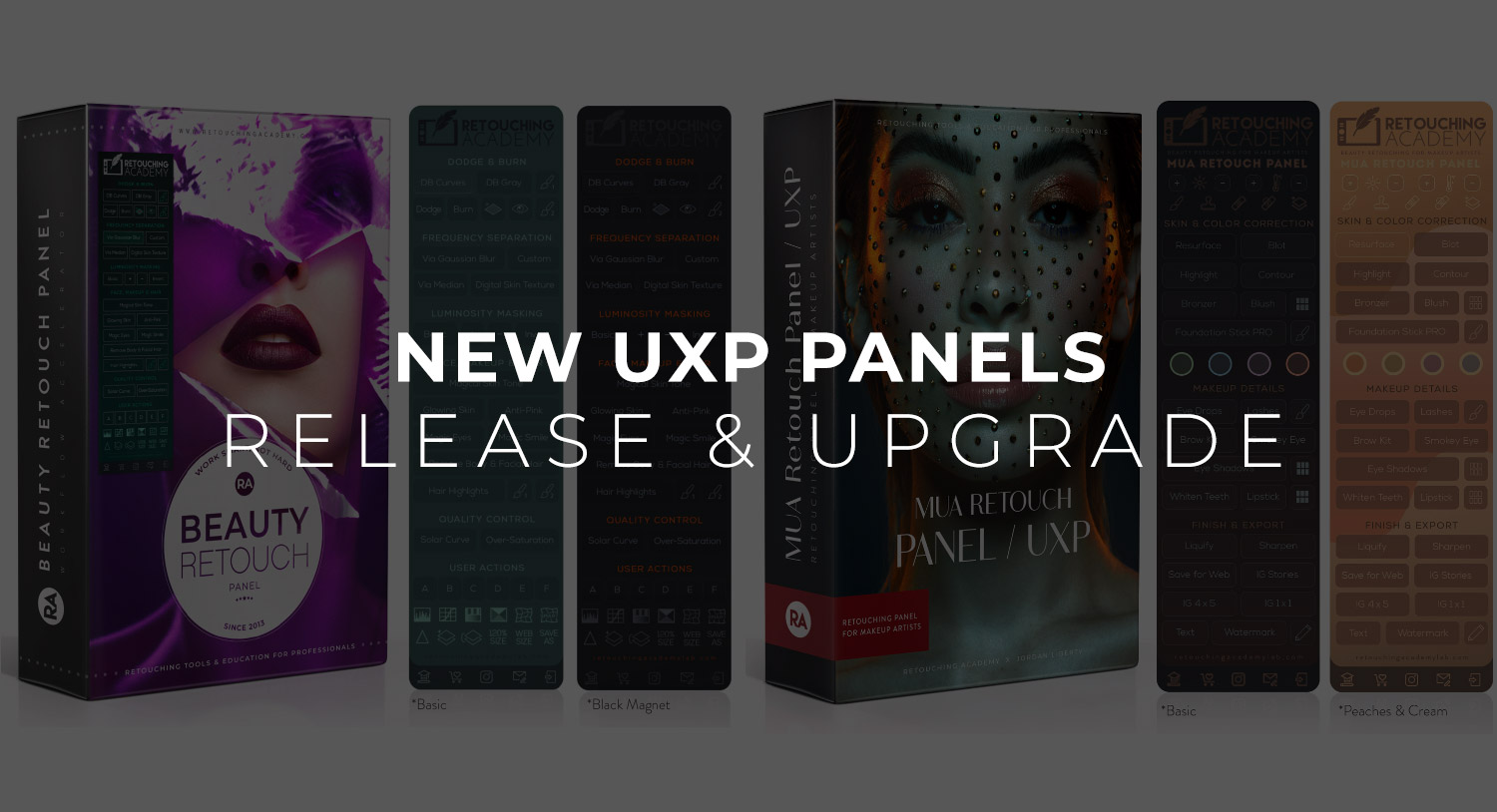
New RA UXP Panels
We are delighted to announce the official release of our new RA Panels in the new UXP, Adobe’s Universal Extensibility Platform format! After almost a year of development and a full month of field-testing with hundreds of our current customers, we are confident that these panels will enhance your retouching workflow, make it super easy to install/uninstall them, and allow you to get more work done faster helping your freelance business to thrive!
New Review of the Beauty Retouch Panel
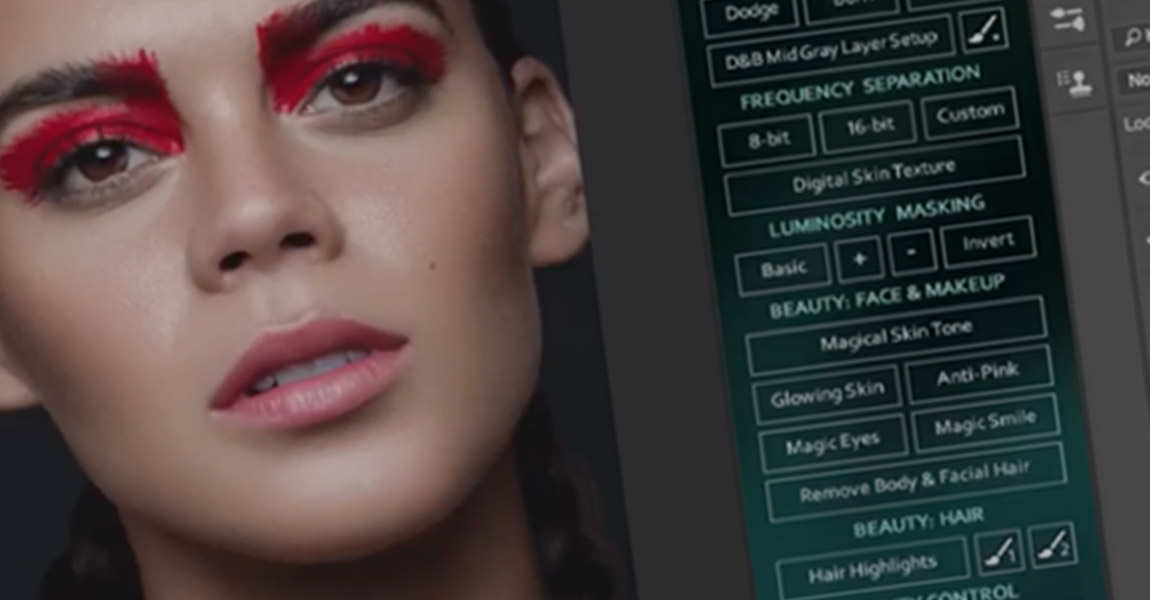
For thousands of retouchers around the world, the Beauty Retouch and Pixel Juggler Panels have brought efficiency to their workflow by optimizing the retouching techniques we often use. RA Panels are an extension that works with Adobe Photoshop CS6 and CC versions, allowing users the ability to dodge and burn, use visual aids, add digital skin texture, correct skin tones, liquify, fix teeth and eyes and more with a click of a button. The shortcuts and